

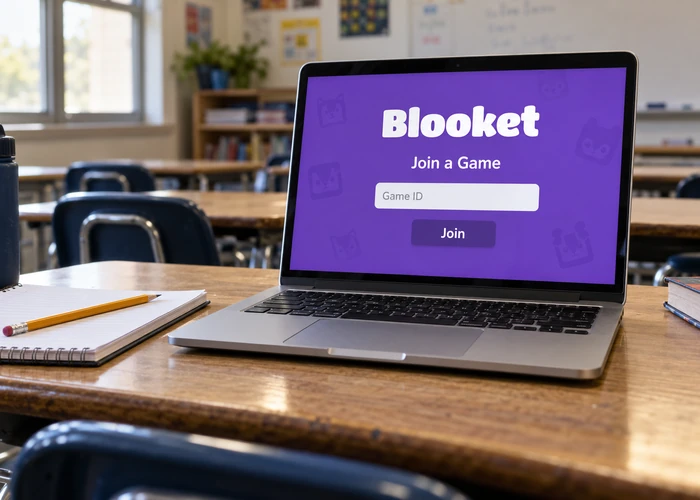
The teacher has started a game, classmates are choosing their characters, and your screen is still asking for a number. Getting into Blooket should take seconds, but a typing mistake or an old invitation can slow things down. A few simple checks usually help you work out what went wrong.
A blooket code connects players to a live learning game. Once everyone joins, the host starts the activity, and students answer questions through their chosen game mode. Here is how the process works, what teachers need to prepare, and what students should do when they cannot enter.
Blooket Code: Quick Facts
| Detail | What You Need to Know |
|---|---|
| Platform | Blooket |
| Purpose | Learning through questions and games |
| Joining number | Game ID |
| Official format | Seven digits |
| Provided by | The teacher or game host |
| Student account | Not needed for live participation |
| Other ways to join | QR code or invitation link |
| Free hosting capacity | Up to 60 players |
| Plus hosting capacity | Up to 300 in eligible modes |
| Other activities | Homework and solo games |
What Is a Blooket Code?
A blooket code is the number players enter to join a live game. The host shares it from the lobby after preparing the activity. Everyone using that invitation enters the same session, where they wait for the host to begin.
The number belongs to a game session, not to a student’s account. It does not replace a password, provide paid features, or unlock rare characters. Its job is simply to connect players with the activity their host has prepared.
Where Does the Number Come From?
Blooket provides the joining details through its hosting process. Teachers choose their questions, select a game mode, adjust the settings, and open the lobby.
Students should get their invitation directly from the teacher or host. This avoids confusion caused by old screenshots, messages from previous lessons, or numbers shared without any clear connection to the current activity.
How to Join a Game
Before starting, make sure your device has an internet connection and your teacher has opened the session. Then follow these steps:
- Open Blooket’s official joining page.
- Enter the Game ID supplied by the host.
- Check the digits before continuing.
- Enter a nickname when asked.
- Choose an available Blook.
- Wait for the host to start.
A Blook is the character you use during play. The choices available can depend on your account and the host’s settings.
Some teachers turn on random names. In those sessions, you receive a generated name instead of typing your own.
Joining Without Typing the Number
The host can also share a QR code or an invitation link. These options are helpful when students struggle to copy digits from a classroom screen.
With a QR code, use your device’s camera to open the invitation. With a shared link, open it from your teacher’s message or class platform.
Before You Press Join Again
If something goes wrong, pause and compare your invitation with the teacher’s screen. Confirm that it belongs to the current session. Repeating the same attempt will not help if the host has opened a different game or stopped accepting players.
How Teachers Create a Blooket Code
You receive a blooket code by hosting a live activity through your account. There is no need to use a separate website or download a code generator.
Choose a question set from your own materials or the platform’s available sets. Read through the questions and check the answers before using them with students. A game moves quickly, so correcting mistakes beforehand prevents confusion during the lesson.
Select Host, choose a live game mode, and review its settings. When ready, select Host Now. The lobby then provides the details students need to enter.
Make the Settings Fit the Class
The right settings depend on the lesson. A short review may need only a few minutes, while harder questions may deserve more time.
Available controls can include time limits, score goals, question order, sound, and delays after incorrect answers. Teachers can also decide whether students may enter after play begins.
Give joining instructions before starting. A little preparation keeps the first few minutes focused on learning rather than sorting out access problems.
Why a Blooket Code Might Not Work
A joining problem can have more than one cause. Sometimes the digits are wrong. In other cases, the invitation is correct, but a game setting or connection problem prevents entry.
A Digit Was Entered Incorrectly
Check the full number against the host’s screen. It is easy to miss a digit when copying quickly or viewing a screen from across the room.
If the number still fails, ask the host to confirm the current invitation.
The Invitation Belongs to an Earlier Game
An invitation from yesterday’s lesson does not confirm access to today’s activity. The host may have finished that session and opened another one.
There is no verified universal rule stating that every live code remains usable for a fixed number of hours. The host’s current invitation is the one that matters.
Late Joining Has Been Disabled
Teachers can stop students from entering after the game starts. This means a correct invitation may still fail to admit a late arrival.
Ask the teacher how to proceed. The problem may be a deliberate classroom setting rather than a mistake on your device.
The Session Has Reached Its Player Limit
Free hosting supports up to 60 participants. Plus allows up to 300 in eligible modes, although some games have lower limits.
Teachers planning a large group should check the chosen mode’s capacity before sharing invitations.
The Browser or Network Is Interfering
Browser extensions can affect Blooket’s functions. School networks may also block services needed for live play.
Close unnecessary tabs if your device feels slow. If the problem continues, ask your teacher or school IT team for help. Follow school rules before changing browser or network settings.
Can You Play Without an Account?
Students can join a teacher’s live game without creating an account. The host prepares the activity through their account, while students use the invitation to participate.
An account provides additional options, such as collecting Blooks, tracking statistics, and independent solo play. Students who want to use their account during a live session should sign in before joining.
Registration has age and consent requirements. Parents and teachers should review those rules before helping children create accounts. Permission to join a classroom activity should not be treated as automatic permission to register.
How Homework Differs From Live Play
Homework is designed for students to complete outside a shared live session. The teacher provides an assignment invitation, and students work before its closing date.
Instead of waiting for the whole class, students open the homework link or QR code and begin an allowed game mode.
Assignment Goals and Deadlines
Teachers can set completion goals based on correct answers or the total number of questions answered. These choices affect how much work students must complete.
A correct-answer goal requires students to keep going until they reach the target. A total-question goal counts attempts, including incorrect answers.
Free accounts can set homework deadlines up to 14 days ahead. Plus accounts can set them up to 365 days ahead. After an assignment closes, the teacher must reopen it before students can return.
Playing Alone Without a Live Invitation
You do not need someone else to host every time you want to practise. Blooket also offers solo activities.
Choose a question set, select Solo, and pick an available mode. This gives you a way to review material at your own pace.
Solo play is useful before a test or after a lesson that needs more practice. You can spend time on the subject without waiting for classmates or a teacher to organise another group session.
Which Games Support Live Sessions?
Classic, Gold Quest, Racing, and Battle Royale are examples of live game modes. Each uses questions within a different style of play.
Café, Factory, Fishing Frenzy, Monster Brawl, and Tower Defense support live activities, solo play, and homework. Other modes, including Crazy Kingdom, Pirate Pool, and Study, support solo or homework activities.
Some choices require Plus. Seasonal games may be available only during particular periods, so check your account before planning a lesson around one.
The best choice depends on the group. A familiar format can help students focus on difficult questions, while a different game may add variety to routine revision.
Should You Trust Codes Shared Online?
A post offering a working blooket code cannot guarantee that its game is still open. Even a genuine invitation may no longer lead to an activity accepting players.
For classwork, use the invitation supplied by your teacher. For independent practice, solo play gives you a more dependable starting point than an old number shared by someone you do not know.
You should never need to provide a password, email verification number, or account recovery code to obtain a classroom invitation. Those details serve different purposes and should remain private.
FAQs
1. What is a Blooket code?
A Blooket code is a seven-digit Game ID that connects players to a live game hosted by a teacher or another host.
2. How do I join a Blooket game?
Open Blooket’s official joining page, enter the host’s code, choose a nickname if allowed, and select a character. Then wait for the game to begin.
3. Why is my Blooket code not working?
You may have entered the digits incorrectly or used an old invitation. The game could also be full, late joining may be disabled, or a connection problem could prevent access.
4. Can I join Blooket without an account?
Yes. Students can join live games without an account by using the host’s Game ID, QR code, or invitation link.
5. How can I get a Blooket code for my own game?
Sign in, choose a question set, select Host, and pick a live game mode. Adjust the settings and select Host Now to receive the joining details.
